---
title: How to Create an Active Segment (List) in HubSpot
description: How to Create an Active Segment (List) in HubSpot
---
[Skip to content](https://info.transitionaccelerator.ca/allabouttools/how-to-create-an-active-segment-list-in-hubspot#main-content)
English
Show submenu for translations

- [About](https://info.transitionaccelerator.ca/allabouttools/how-to-create-an-active-segment-list-in-hubspot#about)
Open main navigation
Close main navigation
- [About](https://info.transitionaccelerator.ca/allabouttools/how-to-create-an-active-segment-list-in-hubspot#about)
- English
Show submenu for translations
- Contact us
Contact us
How can we help you?
- There are no suggestions because the search field is empty.
1. [All About Internal Tools](https://info.transitionaccelerator.ca/allabouttools?hsLang=en)
2. [CRM Troubleshooting](https://info.transitionaccelerator.ca/allabouttools/crm-troubleshooting?hsLang=en)
3. [Hubspot](https://info.transitionaccelerator.ca/allabouttools/crm-troubleshooting?hsLang=en#hubspot)
March 20, 2026
# How to Create an Active Segment (List) in HubSpot
## Active lists (segments) automatically update based on defined criteria.
Active lists are used for:
- Targeted communications (newsletter, partner communication, event communication, etc)
- Reporting and analysis
- Workflow automation
If you built it correctly, it will maintain itself.
An active list updates automatically when contacts meet (or no longer meet) your criteria.
Example:
- All contacts who attended a specific event
- All contacts in a specific industry
- All contacts who are associated with a specific project
#### **Step-by-Step: Creating an Active List**
1. Go to Lists
- In HubSpot, navigate to:
CRM → Segments
---
2. Click “Create Segment”
- Top right corner
- Choose Contact-based list (most common)
---
3. Select “Active List”
- Choose Active
---
4. Name Your List Clearly
Follow the naming convention:
`[Team] – [Purpose]`
Examples:
- CRH2 - general Mailing List
- BDA - Partners
Avoid vague names like:
- “Test list”
- “New contacts”
- “Segment 1” (please, what does that even mean?)
---
5. Set Your Filters (The Core Step)
Click “Add filter” and define your criteria.
---
##### **Common Filter Types**
Contact Properties
- Industry =
- Verticals or Initiative =
- Associated company =
Activity-Based Filters
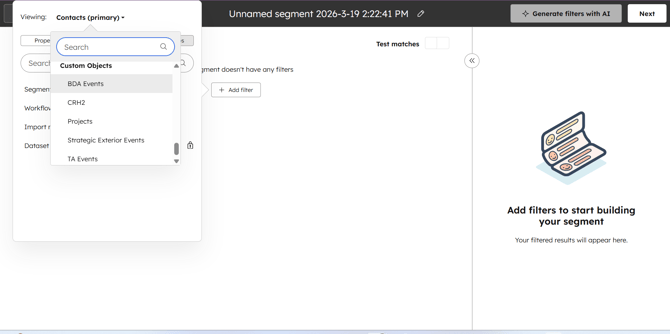
- Associated with another custom object (i.e, TA events)
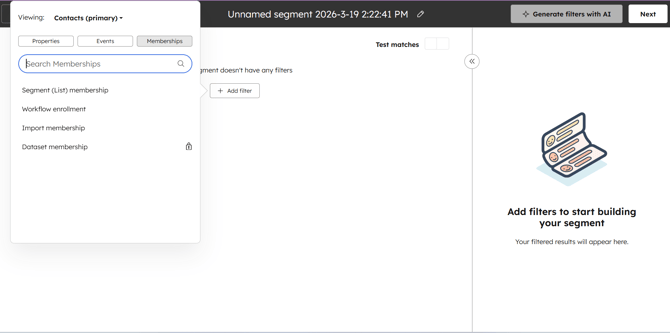
List Membership
- Is member of another list
---
#### **Example Build**
Goal: Contacts who attended 2025 BDA Forum.
Filters:
- Add Filter - Viewing - Custom Objects - BDA events
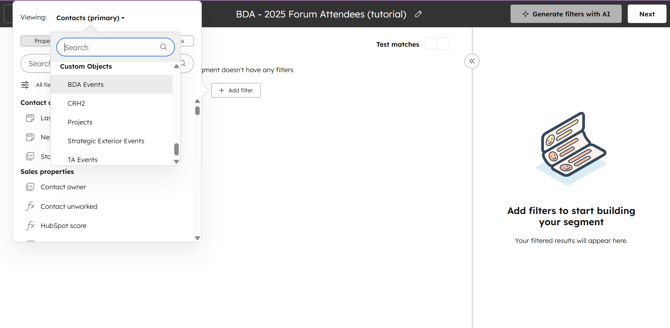
- Add Event Name + contains any of + BDA Forum
- Add "and" condition (if there is one, skip this step if you don't need additional filter)
- Add Event Year + "contains any of + 2025
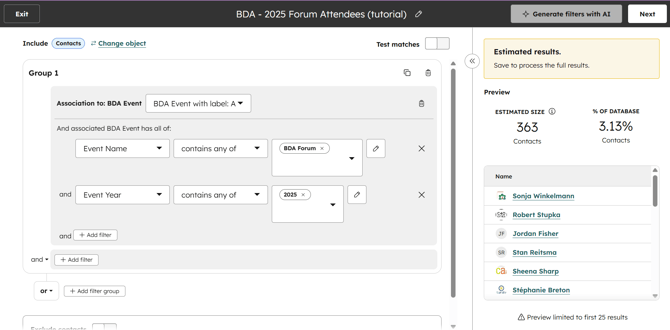
\*Always use "contains any of" when entering specific names (i.e, BDA Forum 2025), because it will give you better results,
---
6. Refine with AND / OR Logic
- **AND** = must meet all conditions
- **OR** = can meet any condition
**Common mistake:**
Using OR when you meant AND → results explode and become useless.
---
7. Review List Size
- Check how many contacts are included
- Sanity check: does this number make sense?
If not:
- Your filters are wrong
- Or the data is messy
---
8. Save the List
Once saved:
- The list updates automatically
- No manual maintenance required
---
#### **Best Practices**
✔ Keep filters simple and intentional
✔ Use naming conventions consistently
✔ Test with small segments first
✔ Regularly review high-impact lists
---
#### **Quick Gut Check**
Before using a list, ask:
- Do I understand exactly who is in this list?
- Would someone else understand it from the name alone?
- Will this update automatically without me touching it?
If you run into roadblocks - reach out!
- [General](https://info.transitionaccelerator.ca/allabouttools/general?hsLang=en#main-content)
- [Teams](https://info.transitionaccelerator.ca/allabouttools/general?hsLang=en#teams)
- [CRM Troubleshooting](https://info.transitionaccelerator.ca/allabouttools/crm-troubleshooting?hsLang=en#main-content)
- [Hubspot](https://info.transitionaccelerator.ca/allabouttools/crm-troubleshooting?hsLang=en#hubspot)
- [Operations and Core Work Tools](https://info.transitionaccelerator.ca/allabouttools/operations-and-core-work-tools?hsLang=en#main-content)
- [Forecast/Harvest](https://info.transitionaccelerator.ca/allabouttools/operations-and-core-work-tools?hsLang=en#forecast-harvest)
- [Sharepoint and File Organization](https://info.transitionaccelerator.ca/allabouttools/operations-and-core-work-tools?hsLang=en#sharepoint-and-file-organization)
- [Productivity Tools Guidelines](https://info.transitionaccelerator.ca/allabouttools/productivity-tools-guidelines?hsLang=en#main-content)
- [Think-cell](https://info.transitionaccelerator.ca/allabouttools/productivity-tools-guidelines?hsLang=en#think-cell)
- [Efficient Elements](https://info.transitionaccelerator.ca/allabouttools/productivity-tools-guidelines?hsLang=en#efficient-elements)
- [AI Tools](https://info.transitionaccelerator.ca/allabouttools/ai-tools?hsLang=en#main-content)
- [Claude](https://info.transitionaccelerator.ca/allabouttools/ai-tools?hsLang=en#claude)
- [About](https://info.transitionaccelerator.ca/allabouttools/how-to-create-an-active-segment-list-in-hubspot#about)
[](http://www.transitionaccelerator.ca)
[mailto:email@email.com](mailto:email@email.com)
Copyright © 2026, The Transition Accelerator